Buy n4c.eu ?
We are moving the project
n4c.eu .
Are you interested in purchasing the domain
n4c.eu ?
domain@kv-gmbh.de · 0541-91531010
Buy n4c.eu ?
What is the hotkey for Spotify?
The hotkey for Spotify is Ctrl + Shift + Space on Windows or Command + Shift + Space on Mac. This hotkey allows you to play/pause music in Spotify without having to switch to the Spotify app. It is a convenient shortcut for controlling your music playback while working on other tasks. **
How can you change a hotkey?
To change a hotkey, you can typically go into the settings or preferences of the program or software where the hotkey is used. Look for a section related to keyboard shortcuts or hotkeys, and then find the specific hotkey you want to change. Once you locate the hotkey, you can usually click on it and then input the new key or combination of keys that you want to use as the new hotkey. After making the change, be sure to save your new hotkey settings. **


Similar search terms for Hotkey
Top-Angebote
Products related to Hotkey:
-
Loungefly Care Bears x Sesame Street Crossbody Bag - Official Collaboration - Character Artwork - Compact CarryDiscover the Loungefly Care Bears x Sesame Street Crossbody Bag, a playful and collectible accessory designed for fans who want a compact way to carry their essentials. This official Loungefly crossbody bag features the Care Bears x Sesame Street design, with colorful artwork highlighting beloved Care Bears and Sesame Street characters across the exterior. The crossbody design offers a hands-free carrying option ideal for everyday outings, events, or themed gatherings. Perfect for fans and collectors, this crossbody bag lets you show your fandom while keeping your daily essentials secure and within easy reach. Its playful design pairs well with a range of outfits, making it a practical collectible that adds personality to both casual looks and convention outfits. A great accessory for fans of both Care Bears and Sesame Street.75,00 £*Shipping: 0,00 £Secure redirect to the provider
-
Care Bears Hufflepuff House Hoodie Plush 30cm - Official Harry Potter Collaboration - Soft Plush ToyMeet the Care Bears - 30cm Harry Potter Hufflepuff House Hoodie Plush, an official collaboration from Lennies Toys. This premium crossover brings the comforting whimsy of Care Bears together with the magic of Hogwarts to celebrate 25 years of the Harry Potter series. It’s a larger, more detailed plush that sits charmingly on a shelf and provides a comforting companion during bedtime adventures. Official Care Bears x Harry Potter collaboration with authentic design. The plush features a Hufflepuff House robe, scarf, crest details, and a badger mascot hoodie for instant house pride. Love-A-Lot Bear represents kindness, loyalty, and compassion inspired by Hufflepuff values, complete with a dual hearts belly badge and a paw featuring the Harry Potter 25th Anniversary logo. The plush is made from premium, soft fabrics designed for gentle play and long-lasting comfort. This plush is perfect for fans who want a tangible piece of both magical worlds.16,99 £*Shipping: 3,95 £Secure redirect to the provider
-
Uplifted Finds 40 Pack High Efficiency Replacement Filters 40 Pack High Efficiency Replacement FiltersEnsure your pet always has access to clinicalgrade water with this 40Pack Filter and Sponge Set. Engineered for highcapacity 67oz (2L) and 108oz (3.2L) stainless steel fountains, this bulk kit provides a comprehensive solution for longterm water...73,97 $*Shipping: 0,00 $Secure redirect to the provider
-
Uplift Essentials High Efficiency Non Stick Camping Skillet High Efficiency Non Stick Camping SkilletUpgrade your trailside cooking with this highperformance Nonstick Camping Frying Pan. Engineered for the weightconscious hiker, this outdoor hiking skillet combines a premium stickfree surface with a rugged, ultralight build. Whether you are searing...128,97 $*Shipping: 0,00 $Secure redirect to the provider


-
How can you customize the hotkey settings in Minecraft?
In Minecraft, you can customize the hotkey settings by accessing the controls menu in the game's settings. From there, you can reassign keys to different actions by clicking on the action you want to change and then pressing the key you want to assign to it. You can also reset the keybindings to default or restore them to a previous configuration. Additionally, you can create custom keybindings by editing the game's options.txt file located in the game's directory. **
-
How do I create a hotkey for the mouse?
To create a hotkey for the mouse, you can use third-party software such as AutoHotkey or X-Mouse Button Control. These programs allow you to assign specific mouse actions to keyboard shortcuts. Once you have installed the software, you can set up a hotkey by defining the mouse action you want to trigger and then assigning a keyboard shortcut to it. This will allow you to perform mouse actions using a keyboard shortcut, making it easier and more efficient to navigate and interact with your computer. **
-
Why is the hotkey on the mouse not working?
The hotkey on the mouse may not be working due to a few possible reasons. It could be a hardware issue, such as a malfunctioning button or a loose connection. It could also be a software issue, such as the hotkey not being properly configured in the mouse settings or conflicting with other software. Additionally, the hotkey function may not be supported by the specific application or program you are trying to use it with. Troubleshooting steps could include checking the mouse settings, updating the mouse drivers, or trying the hotkey with a different application to see if the issue persists. **
-
Can I use a second keyboard as a hotkey keyboard?
Yes, you can use a second keyboard as a hotkey keyboard. You can assign specific keys on the second keyboard to act as hotkeys for various functions or commands. This can be especially useful for gamers or individuals who need quick access to certain functions without interrupting their primary keyboard usage. Just make sure the second keyboard is compatible with your system and that you configure the keys accordingly in your settings. **

How can one use the TS-Hotkey as the default?
To use the TS-Hotkey as the default, you can set it up in the settings of the program or application you are using. Look for the hotkey or shortcut settings within the program and assign the TS-Hotkey as the default key for the desired action. Make sure to save the changes and test the TS-Hotkey to ensure it is functioning as the default shortcut. Additionally, you may need to restart the program for the changes to take effect. **
Can I bring windows to the foreground using a hotkey?
Yes, you can bring windows to the foreground using a hotkey. In Windows, you can use the Alt + Tab hotkey to cycle through open windows and bring them to the foreground. Additionally, you can use the Windows key + number key (e.g., Windows key + 1 for the first window on the taskbar) to bring a specific window to the foreground. These hotkeys can help you quickly switch between and bring windows to the front of your screen. **
Top-Angebote
Products related to Hotkey:
-
Roger Hunt Old House Eco Handbook: A Practical Guide to Retrofitting for Energy Efficiency and SustainabilityDescription. Condition: Brand New. Format : Hardback. This practical and essential guide to retrofitting for energy efficiency seeks to provide answers to this and other questions homeowners of old houses are asking. Whether your house is medieval and timber-framed or a Georgian, Victorian or Edwardian terrace, it can be made more energy efficient and sustainable. This practical, comprehensive and fully illustrated handbook will show you how.. Title. Old House Eco Handbook: A Practical Guide to Retrofitting for Energy Efficiency and Sustainability. Delivery. Content. Reviews99,99 £*Shipping: 0,00 £Secure redirect to the provider
-
Thunderworks Games Tenpenny Parks Innovation Expansion - Strategic Park ManagementTake your Tenpenny Parks experience further with the Innovation expansion from Thunderworks Games. Develop new ideas for your park, recruit additional specialists, and introduce exciting novelties that can change the way you plan and build. This expansion adds fresh strategic options to the park-management gameplay of Tenpenny Parks. Use research to improve your development plans, bring new specialists into your team, and create more distinctive attractions as you compete to shape a successful park. What’s included: Key features: - New innovation-focused content for Tenpenny Parks - Additional specialists to support your plans - New research and novelty options - More strategic choices during development Please note: This is an expansion and requires the Tenpenny Parks base game to play. It is suitable for players who want to add variety and further strategic depth to their existing game.35,99 £*Shipping: 3,95 £Secure redirect to the provider
-
Loungefly Care Bears x Sesame Street Crossbody Bag - Official Collaboration - Character Artwork - Compact CarryDiscover the Loungefly Care Bears x Sesame Street Crossbody Bag, a playful and collectible accessory designed for fans who want a compact way to carry their essentials. This official Loungefly crossbody bag features the Care Bears x Sesame Street design, with colorful artwork highlighting beloved Care Bears and Sesame Street characters across the exterior. The crossbody design offers a hands-free carrying option ideal for everyday outings, events, or themed gatherings. Perfect for fans and collectors, this crossbody bag lets you show your fandom while keeping your daily essentials secure and within easy reach. Its playful design pairs well with a range of outfits, making it a practical collectible that adds personality to both casual looks and convention outfits. A great accessory for fans of both Care Bears and Sesame Street.75,00 £*Shipping: 0,00 £Secure redirect to the provider
-
Care Bears Hufflepuff House Hoodie Plush 30cm - Official Harry Potter Collaboration - Soft Plush ToyMeet the Care Bears - 30cm Harry Potter Hufflepuff House Hoodie Plush, an official collaboration from Lennies Toys. This premium crossover brings the comforting whimsy of Care Bears together with the magic of Hogwarts to celebrate 25 years of the Harry Potter series. It’s a larger, more detailed plush that sits charmingly on a shelf and provides a comforting companion during bedtime adventures. Official Care Bears x Harry Potter collaboration with authentic design. The plush features a Hufflepuff House robe, scarf, crest details, and a badger mascot hoodie for instant house pride. Love-A-Lot Bear represents kindness, loyalty, and compassion inspired by Hufflepuff values, complete with a dual hearts belly badge and a paw featuring the Harry Potter 25th Anniversary logo. The plush is made from premium, soft fabrics designed for gentle play and long-lasting comfort. This plush is perfect for fans who want a tangible piece of both magical worlds.16,99 £*Shipping: 3,95 £Secure redirect to the provider
-
What is the hotkey for Spotify?
The hotkey for Spotify is Ctrl + Shift + Space on Windows or Command + Shift + Space on Mac. This hotkey allows you to play/pause music in Spotify without having to switch to the Spotify app. It is a convenient shortcut for controlling your music playback while working on other tasks. **
-
How can you change a hotkey?
To change a hotkey, you can typically go into the settings or preferences of the program or software where the hotkey is used. Look for a section related to keyboard shortcuts or hotkeys, and then find the specific hotkey you want to change. Once you locate the hotkey, you can usually click on it and then input the new key or combination of keys that you want to use as the new hotkey. After making the change, be sure to save your new hotkey settings. **
-
How can you customize the hotkey settings in Minecraft?
In Minecraft, you can customize the hotkey settings by accessing the controls menu in the game's settings. From there, you can reassign keys to different actions by clicking on the action you want to change and then pressing the key you want to assign to it. You can also reset the keybindings to default or restore them to a previous configuration. Additionally, you can create custom keybindings by editing the game's options.txt file located in the game's directory. **
-
How do I create a hotkey for the mouse?
To create a hotkey for the mouse, you can use third-party software such as AutoHotkey or X-Mouse Button Control. These programs allow you to assign specific mouse actions to keyboard shortcuts. Once you have installed the software, you can set up a hotkey by defining the mouse action you want to trigger and then assigning a keyboard shortcut to it. This will allow you to perform mouse actions using a keyboard shortcut, making it easier and more efficient to navigate and interact with your computer. **
Similar search terms for Hotkey
-
Uplifted Finds 40 Pack High Efficiency Replacement Filters 40 Pack High Efficiency Replacement FiltersEnsure your pet always has access to clinicalgrade water with this 40Pack Filter and Sponge Set. Engineered for highcapacity 67oz (2L) and 108oz (3.2L) stainless steel fountains, this bulk kit provides a comprehensive solution for longterm water...73,97 $*Shipping: 0,00 $Secure redirect to the provider
-
Uplift Essentials High Efficiency Non Stick Camping Skillet High Efficiency Non Stick Camping SkilletUpgrade your trailside cooking with this highperformance Nonstick Camping Frying Pan. Engineered for the weightconscious hiker, this outdoor hiking skillet combines a premium stickfree surface with a rugged, ultralight build. Whether you are searing...128,97 $*Shipping: 0,00 $Secure redirect to the provider
-
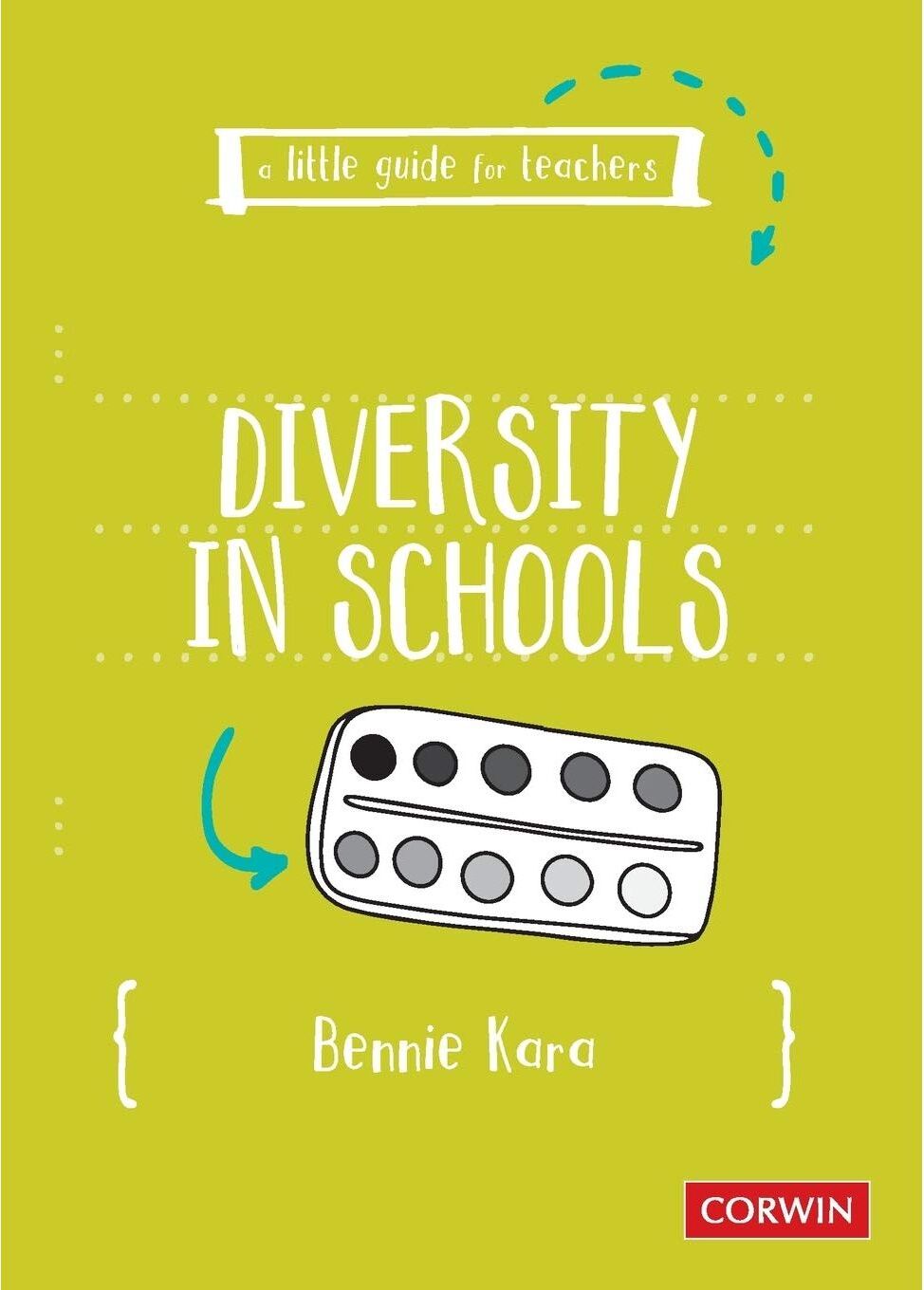
SAGE Publications A Little Guide for Teachers: Diversity in Schools (A Little Guide for Teachers)A Little Guide for Teachers: Diversity in Schools aims to provide starting points for teachers and leaders in creating a curriculum, either across disciplines or within subjects, that is as deep and diverse as their students. The Little Guide for Teachers series is little in size but BIG on all the support and inspiration you need to navigate your day to day life as a teacher. · Authored by experts in the field · Easy to dip in-and-out of · Interactive activities encourage you to write into the book and make it your own · Fun engaging illustrations throughout · Read in an afternoon or take as long as you like with it!12,99 £*Shipping: 2,99 £Secure redirect to the provider
-
Make Brilliant Work: Lessons on Creativity, Innovation, and Success by Rod JudkinsDescription. Condition: BRAND NEW. Format: Paperback. Make Brilliant Work is an inspiring guide to unlocking your creative potential, showing you the methods and techniques that will transform your efforts and help you achieve your best ever work.. You don’t have to be brilliant to produce brilliant work. Many of the characters you will meet in this book failed at school, lacked natural talent, were not especially gifted or were repeatedly sacked. But their methods produced brilliant work – and they will work for you, too. Make Brilliant Work is the essential book from Rod Judkins, author of the international bestseller The Art of Creative Thinking.. Whatever your creative endeavour, you might find it hard to produce something significant and important. The real-life heroes in this book will show you how to make the transformation from ordinary to extraordinary. From Frida Kahlo to Steve Jobs, and star architect Zaha Hadid: the figures in Make Brilliant Work will show you how to think for yourself, take risks and persevere to create brilliant work.. Title. Make Brilliant Work: Lessons on Creativity, Innovation, and Success by Rod Judkins. Delivery. Content. Reviews2,49 £*Shipping: 2,99 £Secure redirect to the provider
-
Why is the hotkey on the mouse not working?
The hotkey on the mouse may not be working due to a few possible reasons. It could be a hardware issue, such as a malfunctioning button or a loose connection. It could also be a software issue, such as the hotkey not being properly configured in the mouse settings or conflicting with other software. Additionally, the hotkey function may not be supported by the specific application or program you are trying to use it with. Troubleshooting steps could include checking the mouse settings, updating the mouse drivers, or trying the hotkey with a different application to see if the issue persists. **
-
Can I use a second keyboard as a hotkey keyboard?
Yes, you can use a second keyboard as a hotkey keyboard. You can assign specific keys on the second keyboard to act as hotkeys for various functions or commands. This can be especially useful for gamers or individuals who need quick access to certain functions without interrupting their primary keyboard usage. Just make sure the second keyboard is compatible with your system and that you configure the keys accordingly in your settings. **
-
How can one use the TS-Hotkey as the default?
To use the TS-Hotkey as the default, you can set it up in the settings of the program or application you are using. Look for the hotkey or shortcut settings within the program and assign the TS-Hotkey as the default key for the desired action. Make sure to save the changes and test the TS-Hotkey to ensure it is functioning as the default shortcut. Additionally, you may need to restart the program for the changes to take effect. **
-
Can I bring windows to the foreground using a hotkey?
Yes, you can bring windows to the foreground using a hotkey. In Windows, you can use the Alt + Tab hotkey to cycle through open windows and bring them to the foreground. Additionally, you can use the Windows key + number key (e.g., Windows key + 1 for the first window on the taskbar) to bring a specific window to the foreground. These hotkeys can help you quickly switch between and bring windows to the front of your screen. **
* All prices are inclusive of VAT and, if applicable, plus shipping costs. The offer information is based on the details provided by the respective shop and is updated through automated processes. Real-time updates do not occur, so deviations can occur in individual cases. ** Note: Parts of this content were created by AI.